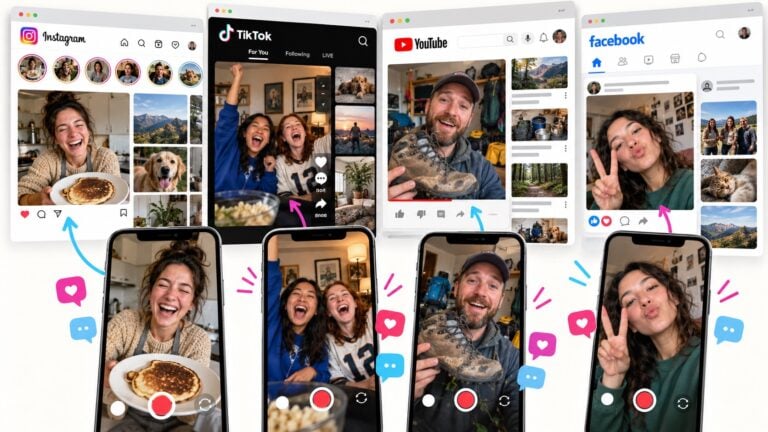
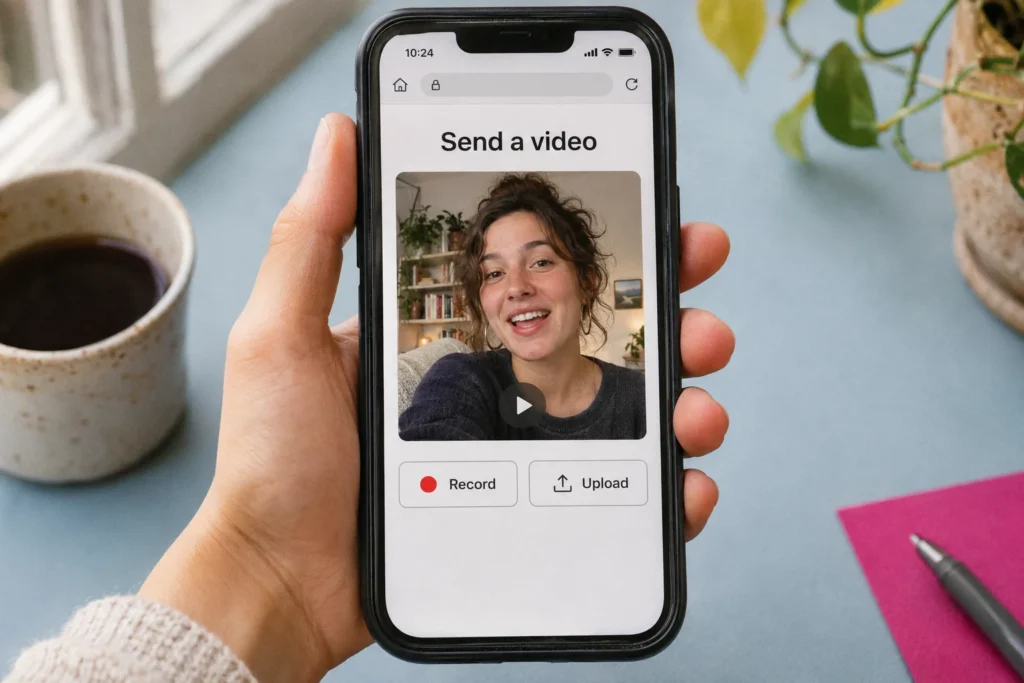
The best way to collect video submissions without a login is to send a link that accepts guest submissions. Use a file request when people already have the video on their phone or computer. Use a browser recording link when participants need to create a video in response to a prompt. Choose a guest upload form when the file needs to arrive with details like a name or order number.
A link can look perfect on your laptop. Then a customer taps Upload at the kitchen counter and gets asked to sign in. Your browser remembered your account, while their phone started from scratch. The first test is a complete submission from a phone, starting with the invitation participants will receive.
Which link should you use to collect video submissions?
Your invitation can settle the question. “Send us your clip from Saturday” asks people to find a file. “Show us how you use the product” asks them to make something. Decide which task you’re asking people to do before you set up the rest of the video submission workflow.
| What you need | Link to send | What to check |
|---|---|---|
| Existing video | File request link | Guests can upload. The folder stays private. |
| Existing video and details | Guest upload form | The file and form fields arrive together. |
| New recording | Browser recording link | Guests can see the prompt and record on their phone. |
| Either kind of video | Link with both options | Record and upload feed the same queue. |
Use a file request for videos people already have
A file request sends existing clips to a destination your team controls. Say six store managers already filmed the Saturday opening. Your editor needs the original footage and already knows who recorded each video. A file request fits that situation. Open it as a guest and check that you can send a clip while the folder contents stay private.
Tell people what you want before they open the link. If your editor needs the original resolution, compare the received test file with the one on the device. Show the deadline and maximum file size before contributors select a video to upload. Check the longest real clip you expect to receive, since a short test file may upload just fine.
Play each sample video after it reaches the submission library. Two files can end in MP4 even when the video inside uses different compression. A platform might accept both uploads while supporting playback for only one compression format. Try sample videos from the phones and editing apps contributors will actually use. For the difference between the extension and the format inside, see MDN’s guide to video file formats.
Use a guest upload form when the details matter
Say three stores each send footage of ten products. On Monday morning, your editor opens a file named IMG_8211 and has to guess which item it shows. Ask for the store and product code in the same form as the video. Then check that both values stay with the file when your editor opens the submission. If someone hands off a batch to another team, check what information travels with each video in the export.
A form can be publicly accessible and still require an account for file uploads. The upload field has its own access requirements. Test all required fields on the live link, including any settings that limit repeat responses or restrict access. For a form that asks for a video URL, test whether your team can actually play the linked file.
Decide who’s eligible to submit. An open invitation can use a link that accepts submissions from anyone who has it. For a fixed list of contributors, individual links can help associate each submission with its intended recipient. If you need to verify the sender, consider a step that checks who controls their email address.
Use browser recording when people need to make something new
Ask for a specific response. A recording prompt should give participants enough direction to show something useful within the time you’ve allowed. For a product demo, you might ask someone to close the lid so viewers can hear it click. Need two shots? Choose a browser recording tool that can show separate instructions and lets participants review a take before sending.
BrandLens is one example of a browser recording workflow with camera guidance. A team can design what participants see on camera, then share the experience by link or QR code. It can ask for details and content permissions during submission. The clips arrive in one library for review.
How do you test a link before you collect video submissions?
Send yourself the actual invitation. Open it as a guest on an iPhone and an Android phone, or use the devices your audience uses. Complete the submission from the first tap to the message that confirms your video arrived. Then switch sides and check that someone on your team can open the clip and find the matching details.
- Start from the place people will tap. Open the link from the actual email or text, or scan the printed QR code. If a social app opens the link inside its own browser, test that route too.
- Finish while signed out. Try every path you plan to offer. A landing page that opens as a guest tells you little about what happens at Upload or Submit.
- Try a real clip. Upload one straight from a phone and one close to the maximum size you expect. Confirm that each accepted submission appears in the review queue and plays with sound.
- Try a denied permission. On the recording path, decline the camera or microphone request once. See if the page tells you how to retry or offers an upload option you’ve enabled.
- Interrupt the upload. Use a test clip and briefly drop the connection. Look for a clear failed or pending status. Retry and check that your team can tell which submission is complete.
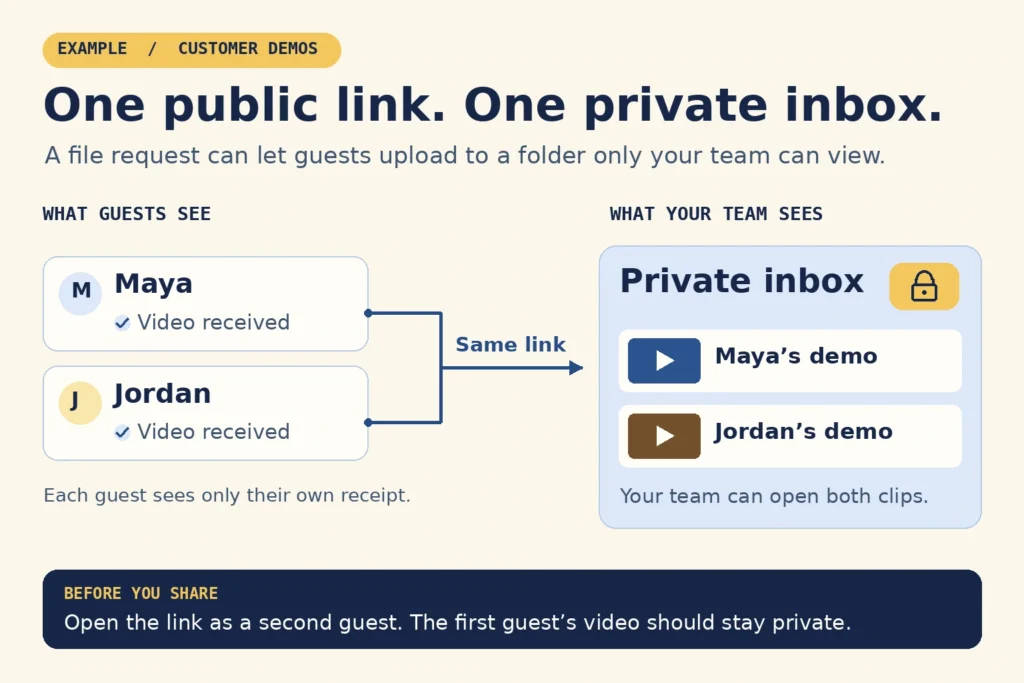
- Check the handoff. Compare the guest’s confirmation with what the reviewer sees. Have a second guest open the same link to check whether the first person’s clip stays private.
Browser recording still needs the person’s permission to use their camera and microphone. That prompt is easy to miss when you test in a browser where you’ve already allowed access. A fresh browser session can show what a new visitor sees when the page requests access. The rules for embedded pages are covered in MDN’s guide to browser camera and microphone permissions.
After someone taps Submit, tell them what happened. While the upload is in progress, tell participants whether they should keep the browser tab open. For a failed upload, explain how to retry and whether the participant needs to select the video again. Save “Video received” for a completed submission. To make these updates available to assistive technology, follow the W3C’s guidance on status messages.
Check what the link does at the end of collection. If submissions close on Friday, decide whether the page should display a deadline or stop taking new videos. A deadline in an invitation and a setting that closes submissions are two different things. If the tool supports an expiration time, open the link after a test cutoff to see what participants get.
What should the invitation say?
Describe one task and give participants a realistic time commitment. Use the button names they’ll actually see. If you offer both recording and uploading, explain when to use each option. Here’s wording for an email that offers both.
Show us how you use the product in 30 seconds or less. Tap Record to make it here or Upload to choose a clip from your phone. Keep this page open until you see “Video received.” If you get stuck, reply to this email.
Common questions about video submissions without a login
Can I collect videos without giving people access to the folder?
Yes, with a file request that gives guests upload access only. Your team keeps access to the destination folder and can review the submitted videos. That distinction matters when contributors have never met. A guest who adds a clip should see their own confirmation while other people’s videos stay private.
Can I collect a name or permission without a participant account?
Yes, a guest form can ask for a name, email address or permission to use a video. Explain where you plan to use the video before asking the participant to make a choice. Capture their choice with the submission so a reviewer can find it later. Check that someone opening the submission can see which terms the participant accepted.
Can a QR code collect videos without asking people to sign in?
Yes, if it points to a link that accepts guest submissions. The QR code opens the same page people would reach by tapping the link. Test it from the printed sign at the size and distance you expect people to use. Add a short, readable URL beside it so people can type it if scanning is inconvenient.
Can several people submit videos through the same link?
Yes, if you set the request up to accept multiple guest submissions. Send the same link to two testers and give both test clips the same filename. Your reviewer should be able to identify each contributor from the details attached to their submission. If you need one entry per invitation, look for a way to enforce that before launch.
Give the link to someone outside your team
Ask them to talk you through the experience as they use it. Notice where they hesitate and what they think happens after they tap Submit. Ask someone on your team to find the clip using the name on the form. They should be able to play it without asking you where it went.
If they needed your help, change the step that stalled them. It might be the wording in the invitation. It might be a setting that asks people to sign in when they attach a video. For a new recording, you can see what the participant encounters in a sample browser video submission.